Crypto Payments Overview
Use the Crypto Payment Methods section for direct wallets, stablecoins, Solana, and Crypto Tokens setup in SellApp.
Crypto payment setup now has its own documentation section with one page for each supported crypto method.
Start with Crypto Payment Methods to choose between direct wallets, stablecoins, Solana, and Crypto Tokens.
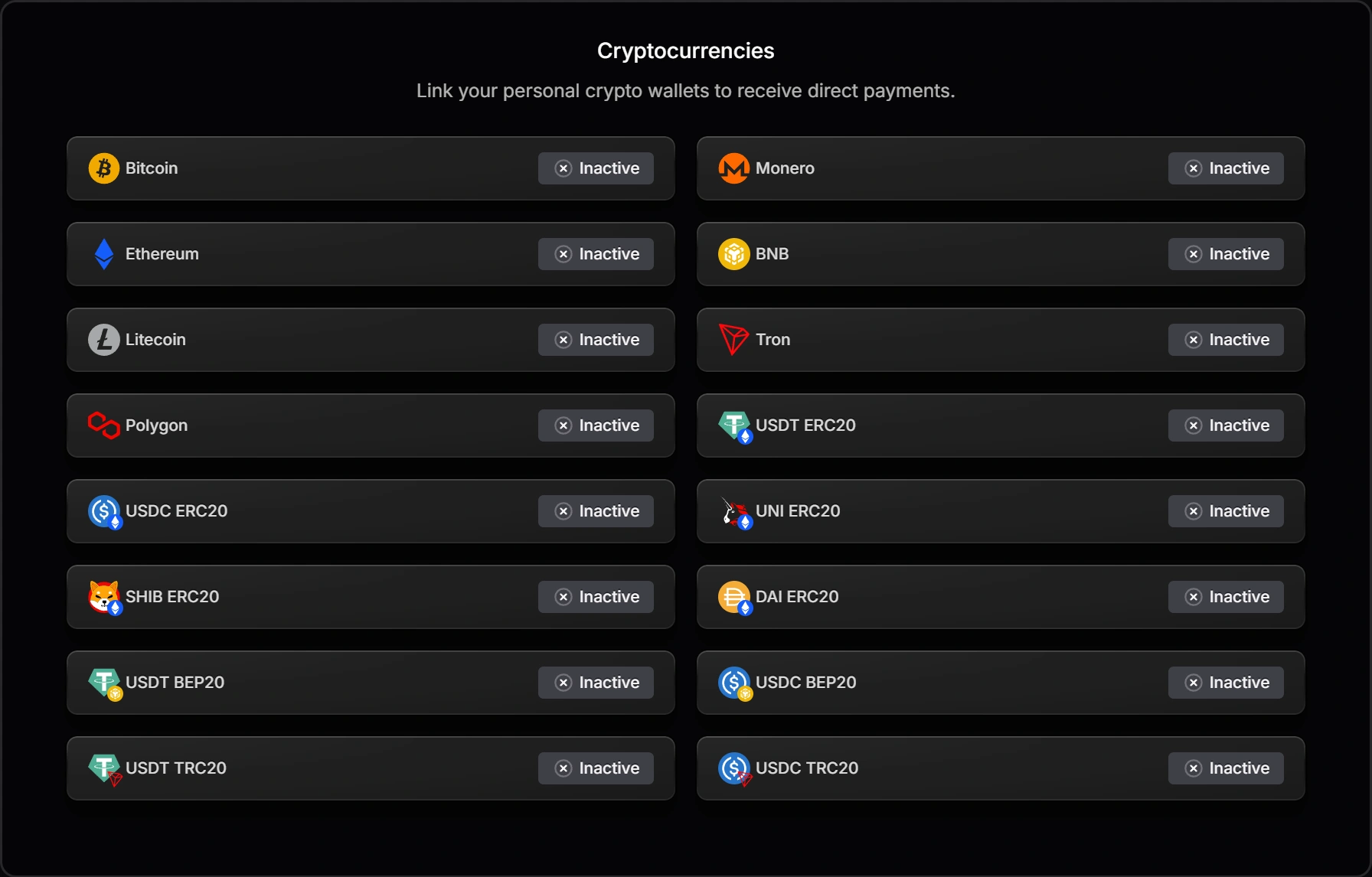
Supported crypto payment docs
Bitcoin Payments
Connect a BTC XPUB and enable Bitcoin checkout.
Ethereum Payments
Connect an ETH wallet and enable Ethereum checkout.
Solana Payments
Connect a SOL wallet and enable Solana checkout.
Crypto Tokens
Let buyers pay with a broad token selection and settle to an eligible wallet.
Open Payment settings, then scroll to Cryptocurrencies.
Optionally: Enabling crypto for products that already exist
If you want to enable crypto for products that already exist, here's how to do so:
- Navigate to your products dashboard by clicking here.
- On the products page, toggle the checkboxes of the products you want to enable crypto for.
- Open the "Bulk update" dropdown and click "Payment methods".
- A modal will pop up; check the relevant crypto option (, as well as all other payment methods you'd like enabled)
- Finally, click "Update All" in the modal to update the products' payment methods.
That's all done for you: all the products you selected will now have crypto enabled as a payment method, which customers will be able to select when making a purchase.
Support: How to find Extended Public Key (XPUB) for Bitcoin and/or Litecoin
For certain crypto, SellApp generates new payment addresses for every order created. These addresses are generated via the extended public key (xpub/zpub/ypub) that you link to your store.
The benefits of linking an XPUB to your SellApp store:
- SellApp does not require access to your private keys, meaning there is zero risk of something going wrong.
- Bitcoin/Litecoin payments go directly to your wallet. We do not hold the crypto or run a separate SellApp payout.
- Enhanced privacy as every new order created generates a fresh address
Important
We strongly recommend using either Exodus or Electrum. Other wallets, such as Ledger, are known to cause issues and may result in funds not being accessible unless you're technical
Where to find xpub in Exodus:
Note
When exporting your XPUB from Exodus for Bitcoin, make sure to use the second XPUB in the list, which starts with a ZPUB
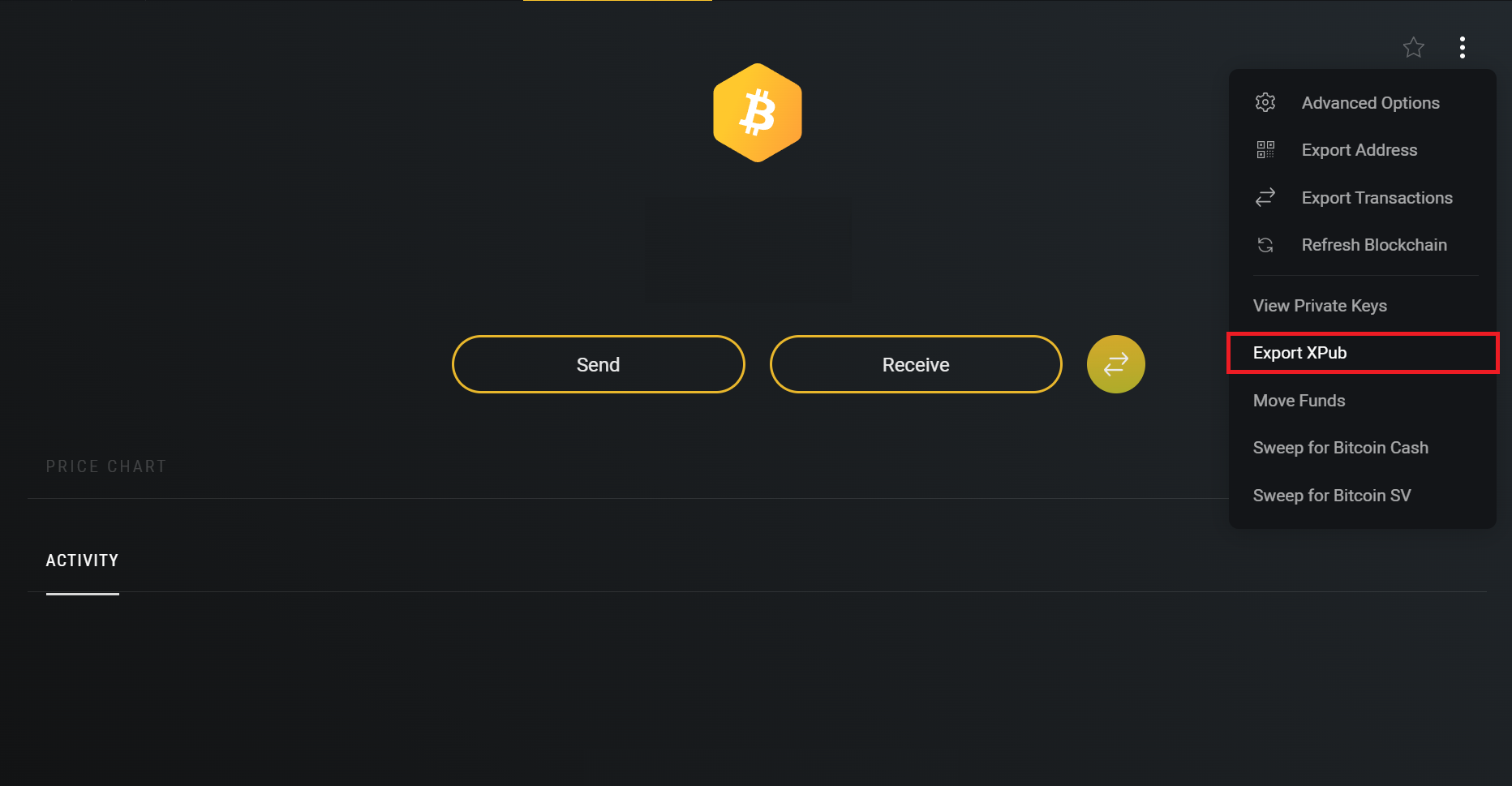
- Open your Exodus desktop wallet app (Note, the mobile wallet does not have this option)
- Navigate to the Bitcoin or Litecoin wallet in the app
- Click the three dots at the top right, then select "Export XPUB" to download your xpub/zpub/ypub key.
- Copy the xpub/zpub/ypub key from the exported file and paste it into your SellApp Bitcoin/Litecoin wallet settings
- Copy and paste the second option for Bitcoin, which starts with a ZPUB
Where to find xpub in Electrum Wallet:
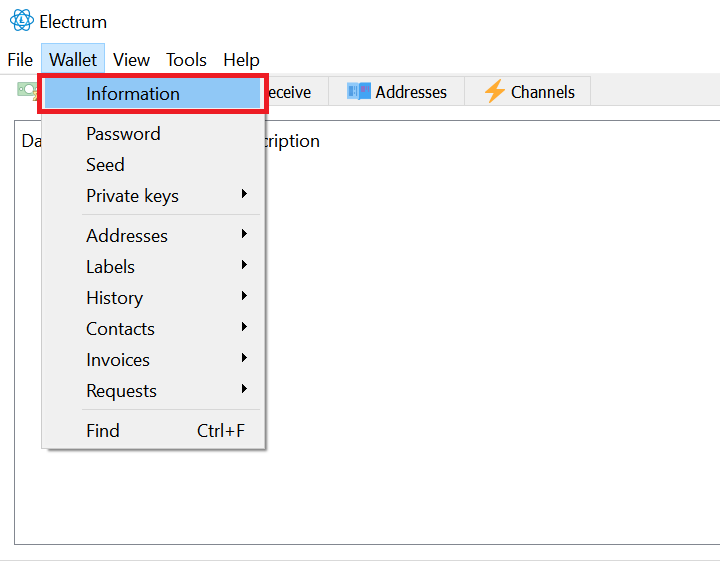
- Open your Electrum app.
- Navigate to "Wallet" -> "Information".
- A modal will appear. The second text area should be titled as "Master Public Key". In the text area itself, it should show your public key that starts with "xpub", "zpub", or "ypub"
- Copy the xpub/zpub/ypub key and paste it into your SellApp Bitcoin/Litecoin wallet settings
Where to find xpub in Coinbase, Binance, Trust Wallet, Kraken, etc.:
These providers hold funds on your behalf, so you don't have an actual wallet with them. This means that you can't retrieve an "xpub", "zpub", or "ypub" key from them.
If this is the case, we'd recommend downloading Electrum or Exodus to use as your SellApp wallet.
Support: I didn't receive the funds in my wallet
There are two possible reasons why you don't see the funds you've received:
- You manually marked an order as completed. Orders should never be marked as completed unless you're absolutely certain you've received the funds
- You copy/pasted an XPUB from a wallet other than Electrum/Exodus
In the first case, this is a user error as funds might never have been sent by the customer. We cannot assist in this scenario, as the payment very likely does not exist.
In the second case, you will want to export your seed and import it into Electrum. Then, you'd need to scan the derivations and/or set the derivation path manually.
To see what derivation path your funds are in, we suggest using the following Trezor link: https://btc1.trezor.io/xpub/EnterYourXpubHere
The above link will show all of the payments your XPUB has received, and the derivation path for each address.