Embed Digital Products
Embed SellApp products on your own website with checkout buttons, cart buttons, themes, and prefilled checkout details.
SellApp's embed modal lets customers buy products from your own website without being redirected to a SellApp product page. It works on any website or codebase and will not affect your site's design.
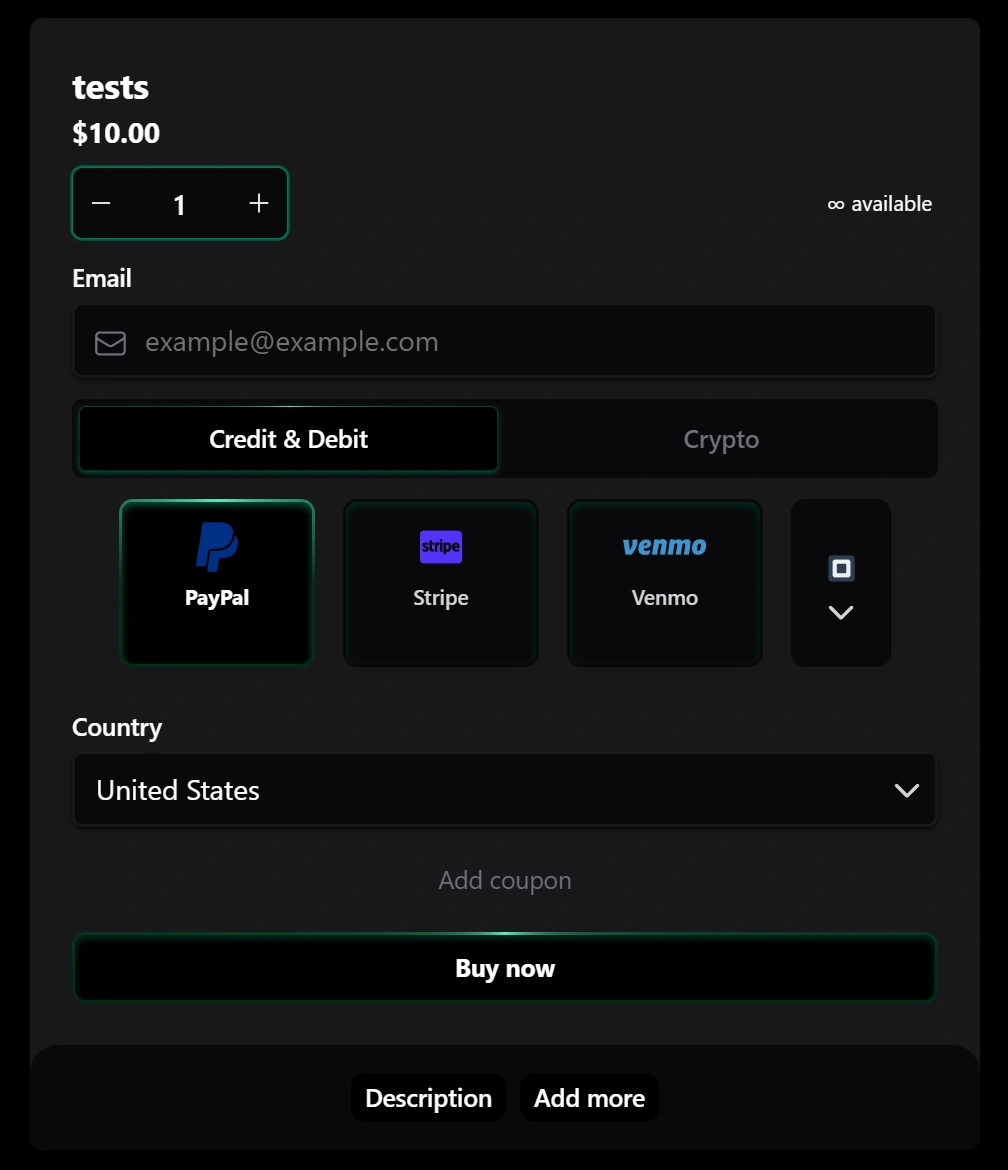
Use it when you want to sell from your own landing page, blog, community site, or custom storefront while still letting SellApp handle checkout.
Add the embed
The easiest way to get the embed code is from your products dashboard:
- Open your products dashboard.
- Select the product or products you want to embed.
- Choose Embed Code from the action bar.
- Paste the generated button where customers should click.
- Add the embed script once on the page.
<script src="https://cdn.sell.app/embed/script.js" type="module"></script>You only need to load the script once per page, even when the page has multiple product buttons.
Note
If your generated snippet includes an extra stylesheet line, keep it with the snippet. The dashboard always gives you the safest version for your store.
Product buttons
A product button needs your store ID and product ID. When a customer clicks it, the checkout opens on your website.
<button
  data-sell-store="123"
  data-sell-product="456"
>
  Buy now
</button>
Use one button per product or offer. You can also add optional details, such as a starting quantity, coupon, theme color, or customer email.
Cart buttons
You can also add a cart button for customers who want to review what they have added before paying.
<button
  data-sell-cart
  data-sell-store="123"
>
  View cart
</button>
The cart stays available for returning visitors for a short period, so customers can come back and continue checkout.
If you want a product button to use single-product checkout only, add data-sell-disable-cart="true". This hides cart actions in the modal and ignores any saved cart for that button.
<button
  data-sell-store="123"
  data-sell-product="456"
  data-sell-disable-cart="true"
>
  Buy now
</button>
If your developer wants to open the cart from another part of your site, they can use:
window.openCheckoutCart('123', {
  darkMode: true,
  theme: '#f97316',
  language: 'en',
})
Button options
You can customize a button by adding extra data-sell-* attributes. These are optional unless marked as required.
| Attribute | Description |
|---|---|
data-sell-store | Required store ID. |
data-sell-product | Required product ID for product buttons. |
data-sell-variant | Opens a specific variant immediately. |
data-sell-quantity | Sets the starting quantity. Use a number, such as 3. |
data-sell-coupon | Applies a coupon code when the modal opens. |
data-sell-email | Prefills the customer's email address. |
data-sell-extra | Sets a starting extra amount for pay-what-you-want products. |
data-sell-payment_method | Starts checkout with a preferred payment method selected. |
data-sell-affiliate | Attributes the order to an affiliate identifier. If omitted, affiliate or aff from the page URL is used when present. |
data-sell-disable-cart | Use true to disable cart functionality for this product button. |
data-sell-hide-stock | Use true to hide stock and availability counts in the modal. |
data-sell-darkmode | Use true to open the modal in dark mode. |
data-sell-theme | Sets the checkout accent color, such as #f97316. |
data-sell-language | Opens checkout in a chosen language. |
data-sell-locale | Alias for data-sell-language. |
For language, you can use values like en, de, fr, nl, es, or pt-BR.
For payment methods, use the gateway value for the payment option you want to preselect, such as STRIPE, PAYPAL, CASHAPP, MERCADO_PAGO, MOLLIE, RAZORPAY, SQUARE, PADDLE, PAYSTACK, VENMO, AUTHNET, or NMI. Crypto values include BTC, ETH, SOL, LTC, XMR, and the other crypto options enabled on your store. For custom payment methods, use the full custom method value shown by SellApp.
Promotions in the embed
The embed modal shows the same active promotion state as your storefront checkout. If a promotion applies, customers can see the discount; if they are below a promotion minimum, the modal can show how much more they need to add; and if a coupon blocks a non-stackable promotion, the embed will keep the promotion from applying.
Checkout info prefills
If your product asks customers for extra checkout information, you can prefill those fields too. Use the field key from the checkout information field in SellApp.
The key is not the field label customers see at checkout. For example, a field labeled "In-game username" may have a key like 4124bc0a9335c27f086f24ba207a4912. Copy the key from SellApp and place it after data-sell-checkout-.
<button
  data-sell-store="123"
  data-sell-product="456"
  data-sell-checkout-4124bc0a9335c27f086f24ba207a4912="JohnDoe123"
>
  Buy now
</button>
This is useful when the customer is already logged in on your site and you already know details such as their username, license name, or another field your product asks for.
Full button example
This example opens a specific variant, applies an orange accent color, adds a coupon, sets quantity, prefills email, and fills a checkout field.
<button
  data-sell-store="123"
  data-sell-product="456"
  data-sell-variant="789"
  data-sell-darkmode="true"
  data-sell-theme="#f97316"
  data-sell-language="pt-BR"
  data-sell-coupon="LOYAL10"
  data-sell-quantity="10"
  data-sell-hide-stock="true"
  data-sell-payment_method="MERCADO_PAGO"
  data-sell-email="johndoe@example.com"
  data-sell-checkout-4124bc0a9335c27f086f24ba207a4912="JohnDoe123"
>
  Buy credits
</button>
Modern websites
The embed is designed to work on static websites, landing page builders, and modern app-style websites. If your site loads product buttons after the page first opens, the embed usually detects them automatically.
If your developer needs to manually refresh the embed buttons, they can call:
window.refreshCheckoutEmbed()