Marketing
Storefront Stories
Add visual stories to your SellApp storefront for product launches, social proof, demos, previews, and product links.
Stories help turn your store into a more interactive buying experience without forcing customers to bounce around your storefront. Use them for product launches, social proof, quick demos, product education, bonus previews, and visual merchandizing for digital products.
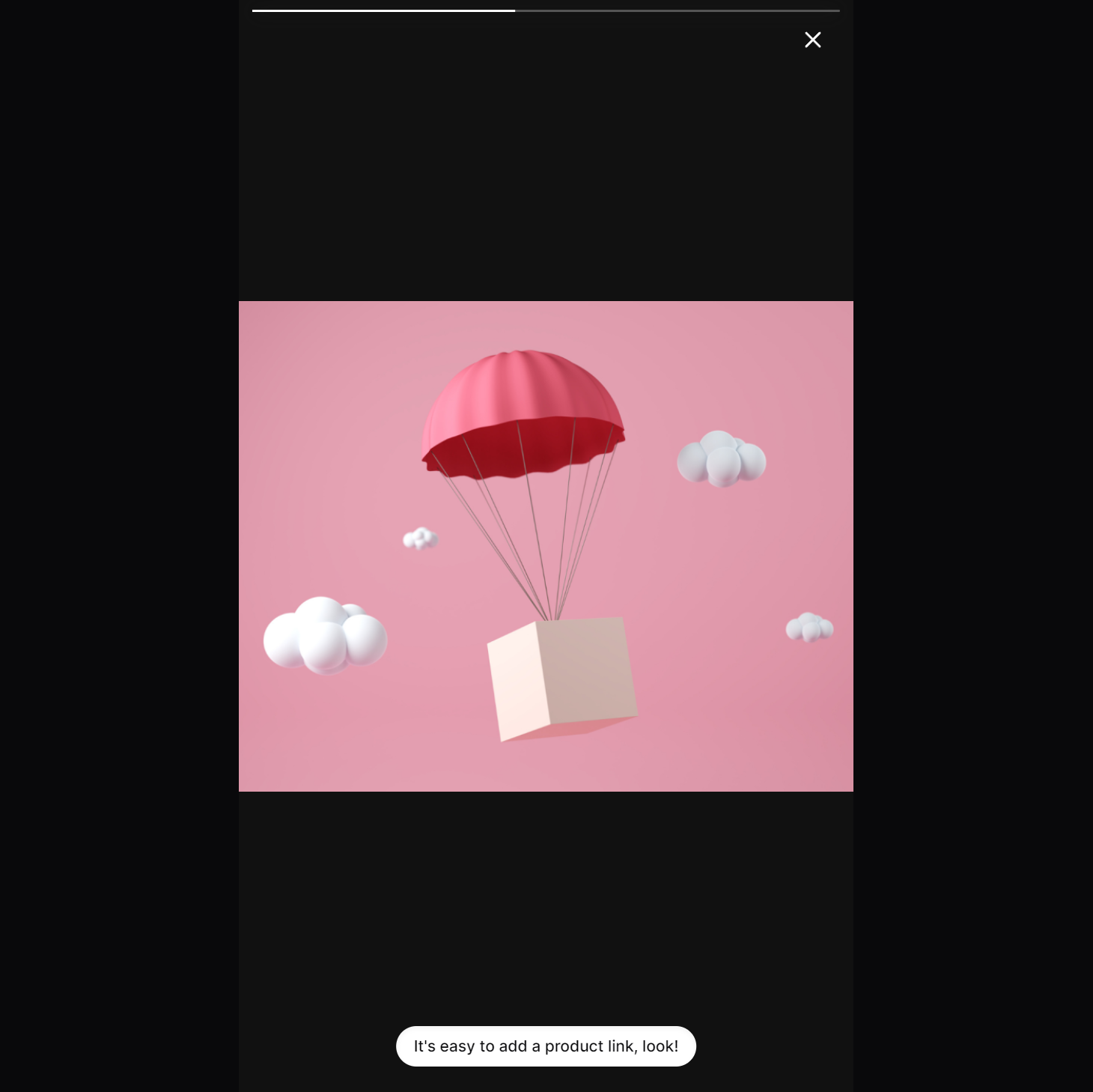
Instead of browsing various pages, customers can:
- Open a story to view an image/video about a product being used
- Click on a product link directly within the story to immediately navigate to the product page (or display the product's embed modal)
- Do the same as above for various other stories. You can have a story for your products, customer reviews, upcoming product drops, and so on
Creating Stories
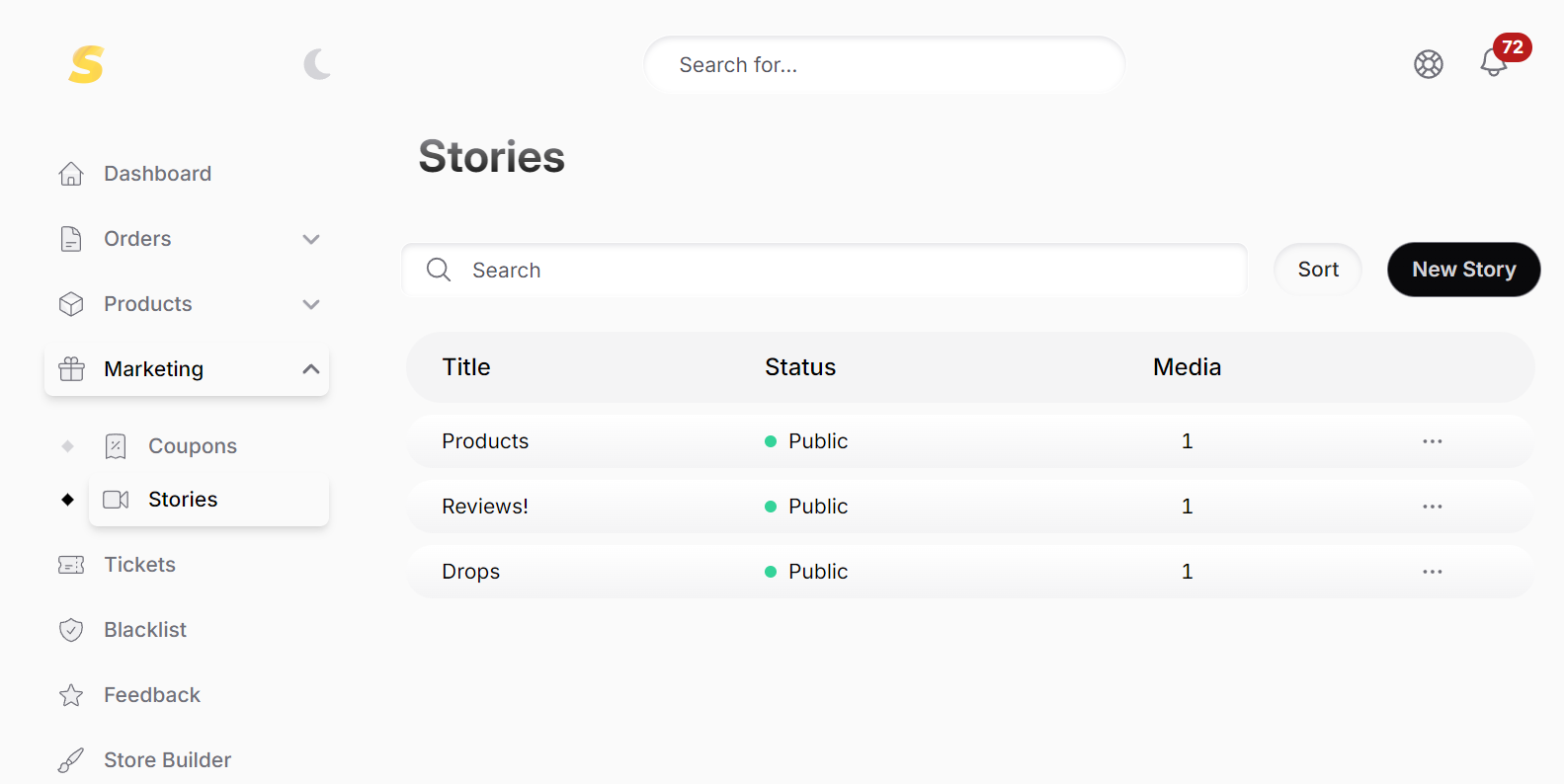
- Navigate to the Stories dashboard by clicking here.
- Click on the "New Story" button to create your first story
- Add a title, choose whether the story is public or hidden, then upload up to 30 media files. Each media file:
- Will be played one after the other
- Can be linked to a unique product
- Can have a different "Call to action" text
- You can preview the story before publishing it
- You can sort media files to your liking, the story will play the media in the order you've sorted
- You can also sort each story to your liking. The order in which you sort a story will be shown when you create the Stories block in the builder.
That's it. You've now created one or multiple Stories. Now, head to the builder to display your Stories block.
Displaying Stories
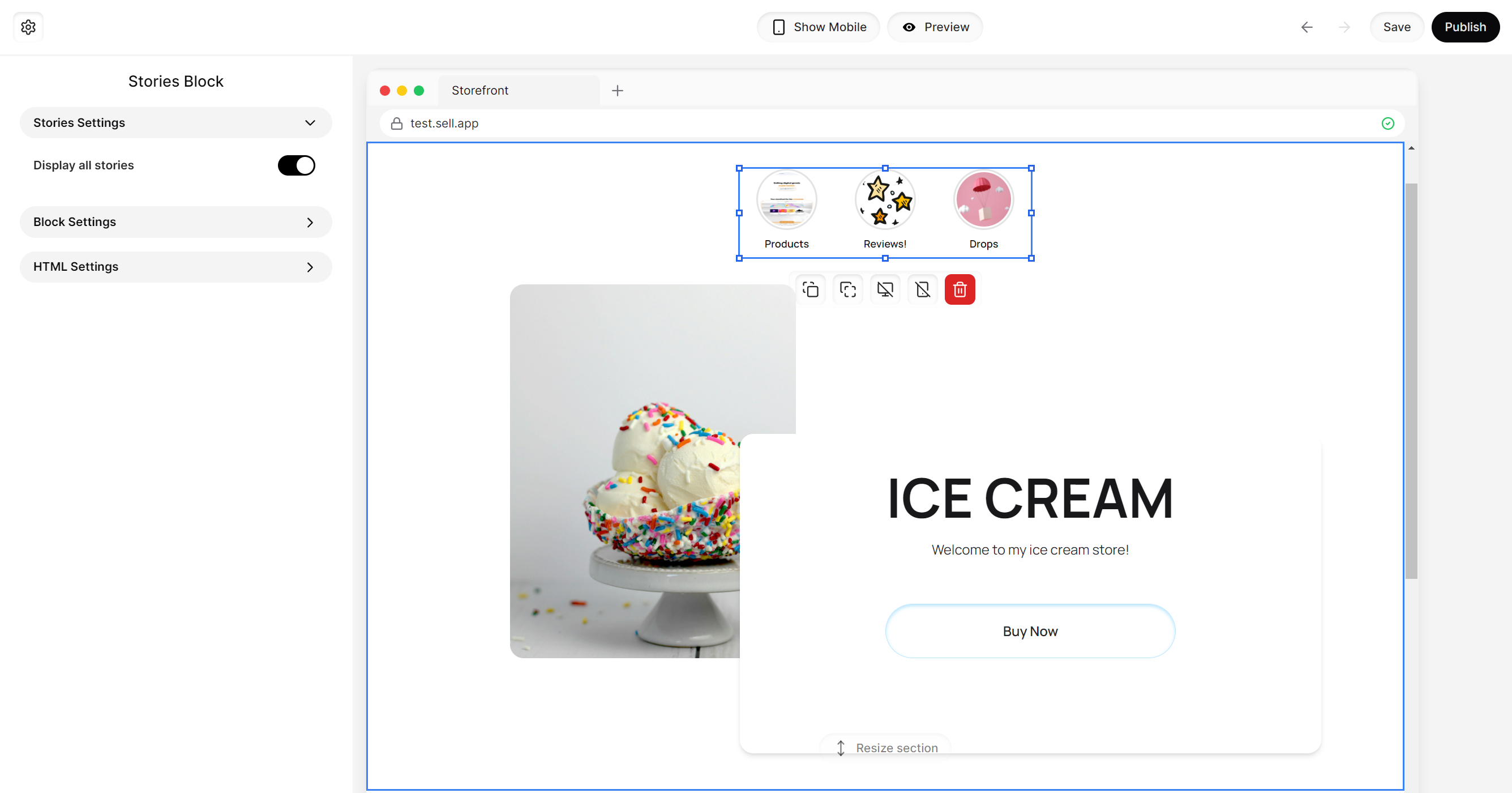
- Navigate to the storefront builder by clicking here.
- Click on the relevant section within which you want to add the "Stories" block
- Click the "Add block" button in the left sidebar, then select the "Stories" option
- The "Stories" block will be inserted into the section. Drag and drop it to whichever place you prefer, the whole section is your canvas. (Don't forget to check the mobile version of your page once done)
- If required, you can configure which story/stories to display by clicking on the "Stories" block and doing so in the left sidebar's "Stories Settings"
Once done, click the "Publish" button at the top right to publish your store's changes. You can then visit your site to see the stories block and interact with it.